Exhibitor Guide
Download and log in to the Lead Capture App
Ensure you have the correct app downloaded and have any login or access codes handy that the event organizer may have provided.
Important: Please' allow' camera access when prompted to enable QR scanning.
To download and login
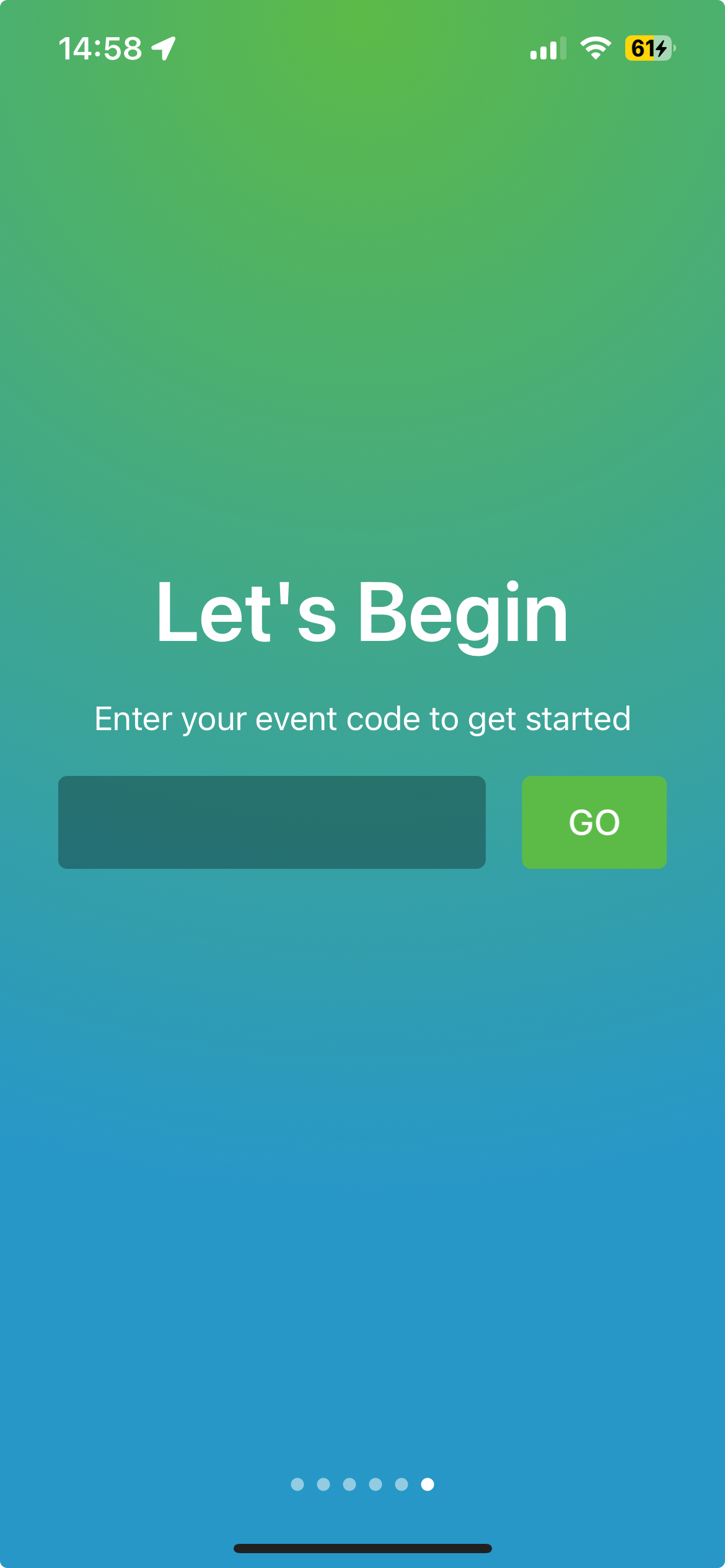
To log in to the Capture App
- Enter the unique Event Code
- Enter Exhibitor Code
- Click Get Started
Create custom qualifying questions in the Lead Capture app
Exhibitors using the Capture App can add their own qualifying questions to complete when capturing a lead. These questions are synced across the team and are best created before you start scanning any attendees.
Note: If a qualifying question is deleted, all data related to that question will be lost.
- Click Manage on the home screen
- Select Qualifying Questions from the list of options
- Click + to add a new question
- Select the type of question you wish to add
- Star Rating
- Yes/No
- Date Picker
- Long Text
- Short Text
- Checkbox
- Multiple Choice
- Add the Question and, if applicable, the response/s
- Click Save
Manage team members in the Lead Capture app
Exhibitors can manage their onsite team from within the Capture app. This allows you to invite staff to your organization's exhibitor team to share lead data and view combined performance.
To manage team members in the Lead Capture app, you will need to be provided with your profile login details to access the app. Team members will also need to be created as profiles by the organizer before they can be added to your team.
To invite team members through Shared Exhibitor Team Code
If fellow exhibitor team members have not pre-registered for the event, you can easily invite them by sharing the team access code.
- Login to the Lead Capture app
- Click Manage on the home screen
- Select Manage Exhibitor Team
- At the top of this page, you will find both the Event Code and Team Code, which can be shared with fellow team members. After entering these details, they will then be prompted to register their details in order to join the team
To view team members
- Click Manage on the home screen
- Select Manage Exhibitor Team
Members who are part of the team and have accepted the invite are listed under Team Members. Those who are yet to accept the invitation are listed under Pending Team Members. This list will also display all available contact information for team members managed from the Core.
Scanning and Managing Leads
To scan leads
At the event, you will mostly be using the SCAN button. This will open the camera and allow you to scan an attendee QR Code.
- Click Scan on the home screen.
- Hold name badge roughly 20 cm from your device camera
- A green tick will indicate a successful scan
- Click Continue Scanning or Go to Attendee to complete answers to qualifying questions and notes.
To manage leads
- Click Leads on the home screen
- Select an attendee’s name
- Click Notes or update answers to qualifying questions
To sync leads
All scans, notes, and qualifying questions completed offline will be saved to your mobile device and synced automatically when you go online. To sync sooner:
- Click Sync on the home screen
- A green tick will indicate when your leads have been successfully synced
Export Leads
You can click on any attendee in this view to open their profile, add extra notes, etc.
Alternatively, you can click LEADS on the bottom right corner to see a full list of leads. Use the search function to find a specific lead.
- Click Export on the home screen.
- Select leads to export All Leads or My Leads.
- Select team members to send leads to or add email address
- Click Submit
To logout
- Click Sync on the home screen to confirm syncs are up to date
- Click Manage on the home screen
- Click Logout/Change Event